
A clear layout
for every drawing.
A practical Tekla drawing-layout starting point for companies that need project information, revision history, numbering and their own identity to read clearly on every issued sheet.
 STRIKE ENGINEERING LAYOUT
Make the information
easy to find.
The pack gives you a clear starting point for the information that fabrication teams look for first: project identity, drawing number, revision, title, quantity and the company mark.
Use the supplied layout as a reference, then adjust the template to your own company standard. The final drawing remains under the control of a qualified steel detailer.
Download the STRIKE
Engineering Layout pack.
Includes drawing layouts, title-block and revision templates, material-list templates and saved drawing settings. RAR download · 1.35 MB.
Open a step.
Follow the mark.
Each row keeps the explanation compact. Open the one you need while setting up the template in Tekla Structures.
Start in a copy of your model.
- Extract the RAR. Copy the contents of STRIKE MODEL FOLDER into the test model folder, keeping the attributes subfolder structure.
- Load the supplied STRIKE_R.F assembly drawing settings. These reference STRIKE-5-11-23, the layout used by the example.
- Check the sheet size, tables and drawing settings in your Tekla version and environment, then follow the guides below.
01Project propertiesProject number and project name appear in the title block+
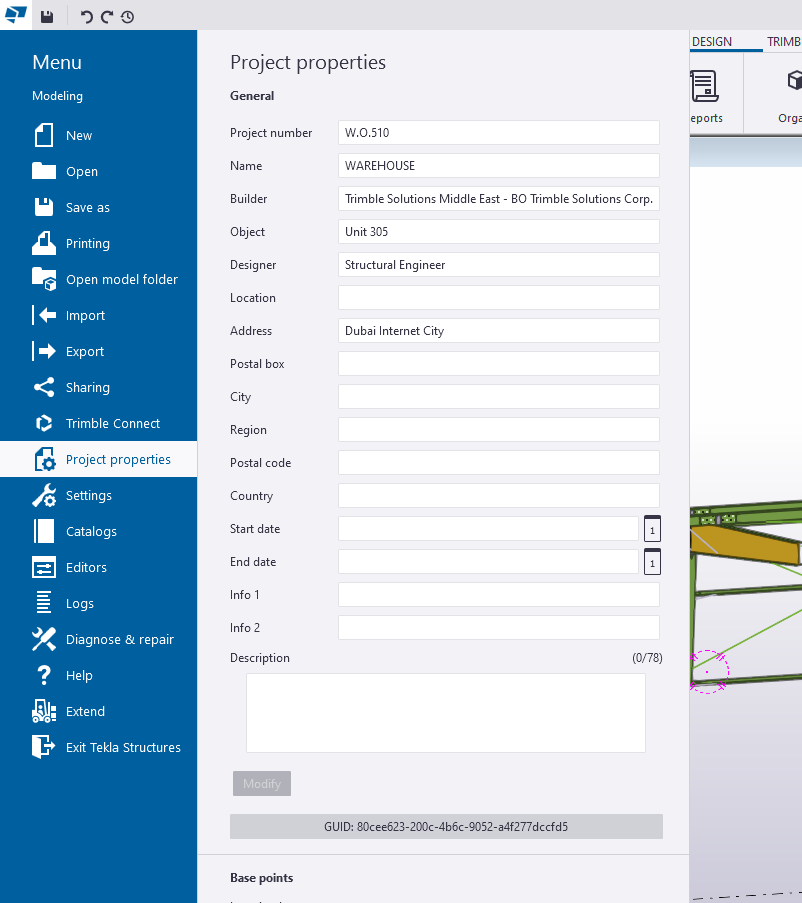
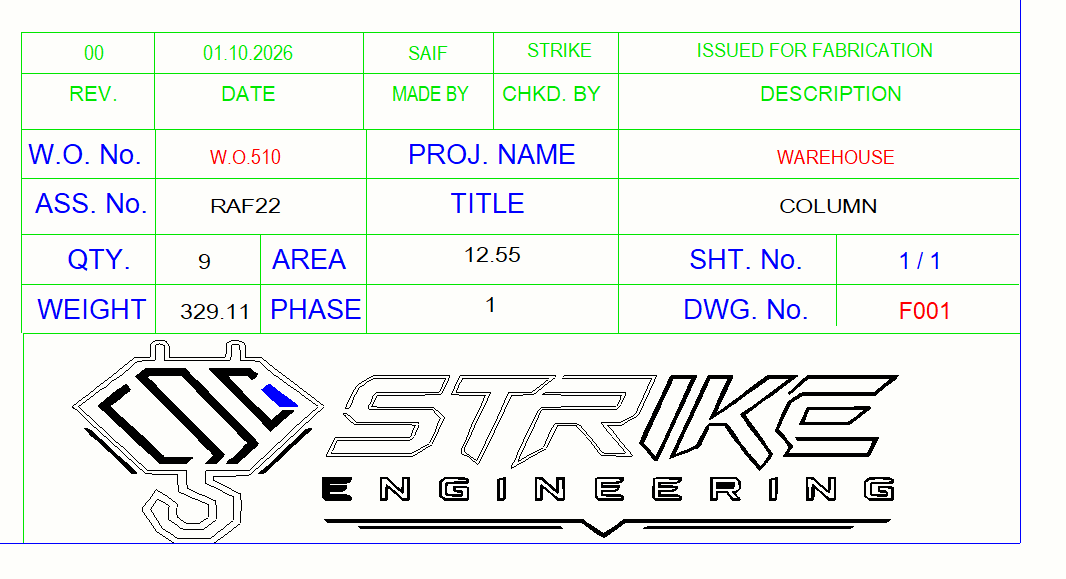
Open Project properties and add the project number and project name. The title block reads these values so the drawing carries the correct project identity.
Use your project’s approved naming standard and check the result on a sample drawing.
02Company logoReplace the STRIKE mark with your company logo+
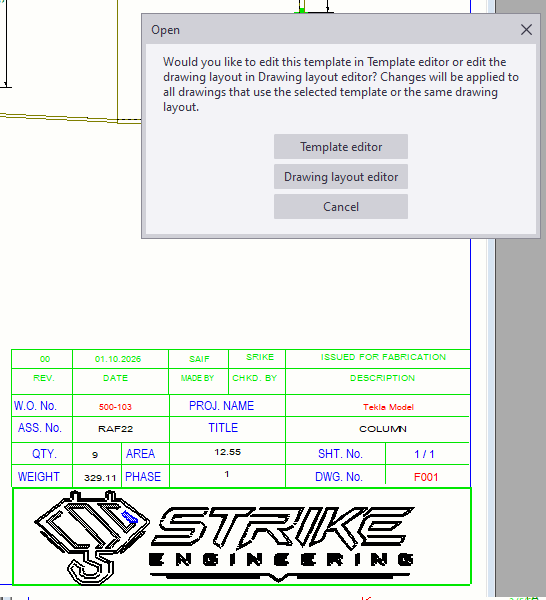
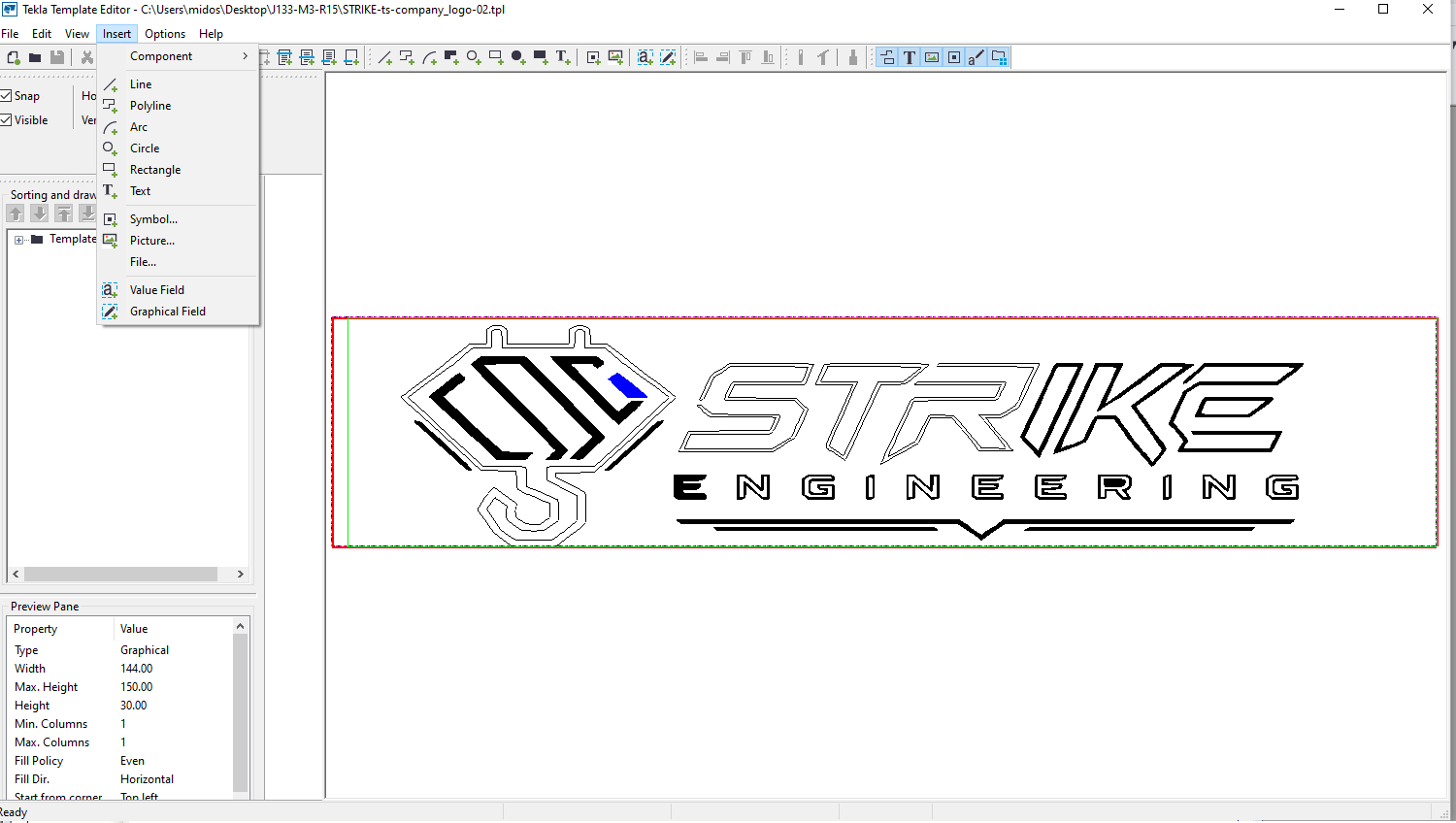
Double-click the logo in the drawing and choose Template editor. In the editor, remove or replace the existing STRIKE logo artwork, then use Insert → File to import your company artwork in a format supported by Template Editor.
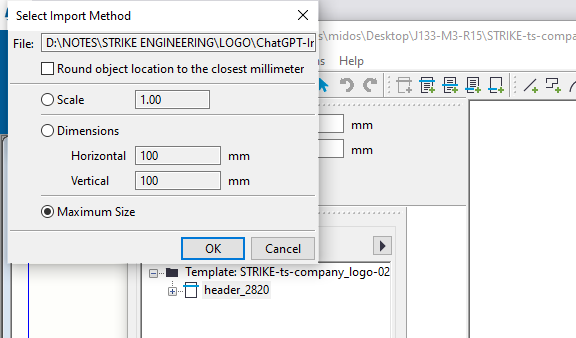
When Tekla asks how to place the file, clear Round object location to the closest millimeter, set the size to fit the logo area and select OK. Save the template, reopen the drawing and check the result. Changes to a shared template affect other drawings that use it.
03Drawing numberingUse the drawing Name as the serial shown in the title block+
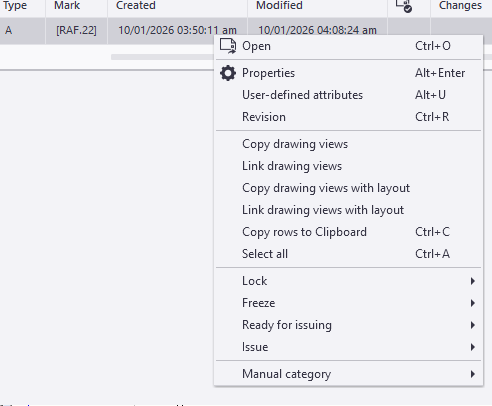
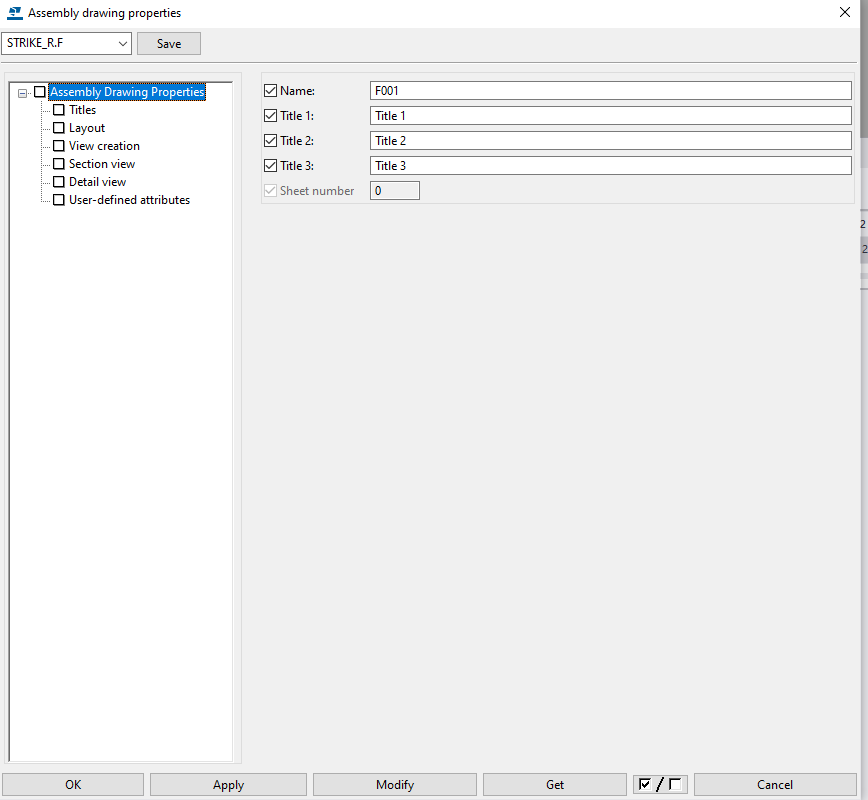
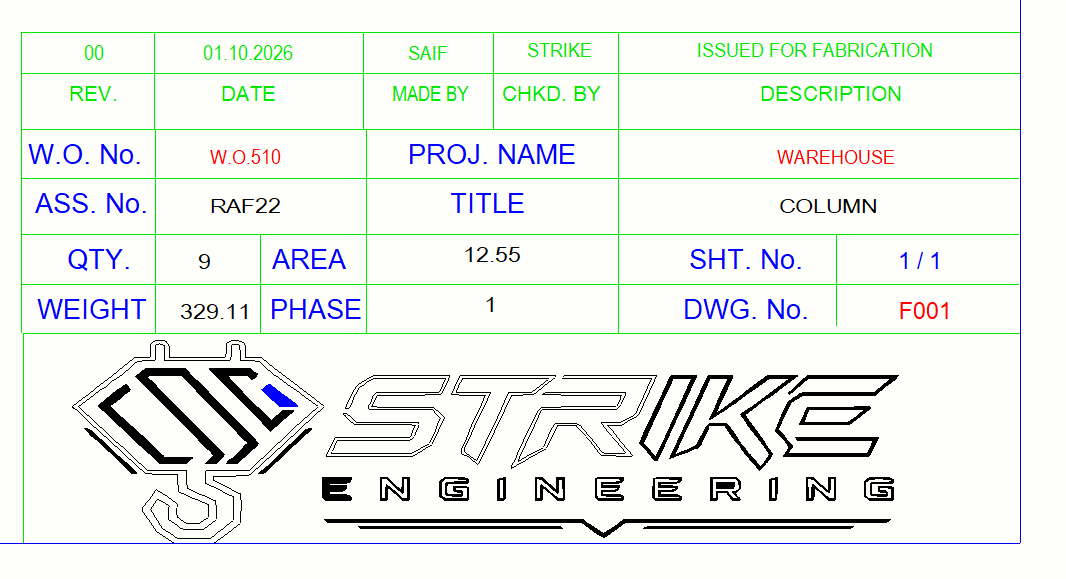
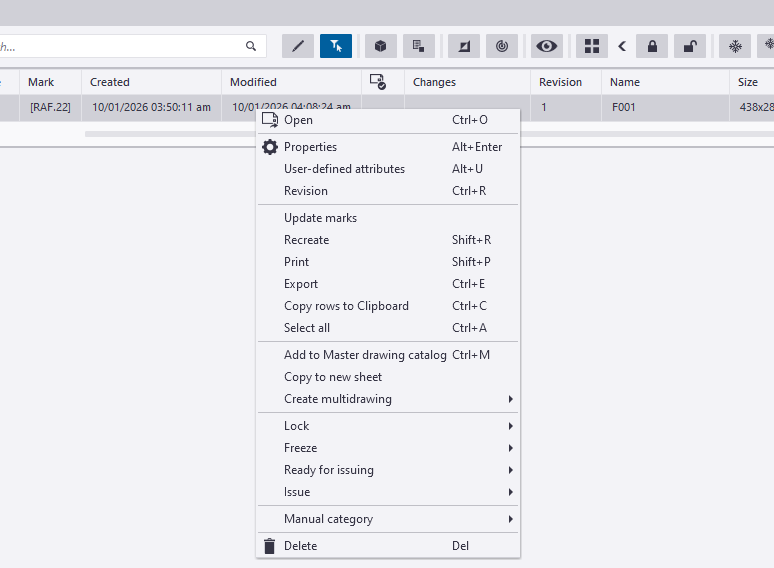
In Document Manager, right-click the selected drawing and choose Properties. In Assembly drawing properties, set Name to your drawing serial, for example F001, then click Modify. Reopen the drawing and check the DWG. No. cell.
For a large package, use STRIKE Numbering Tool to preview and apply one sequence to selected drawings.
04Revision handlingChoose the revision and add the information shown on the sheet+
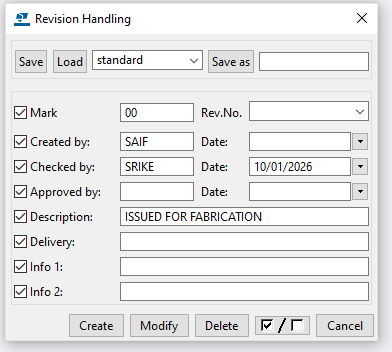
In Document Manager, select the drawing and choose Revision. Enter the Mark, Created by, Checked by, the date next to Checked by and Description. Choose Create for a new revision or Modify for the selected revision.
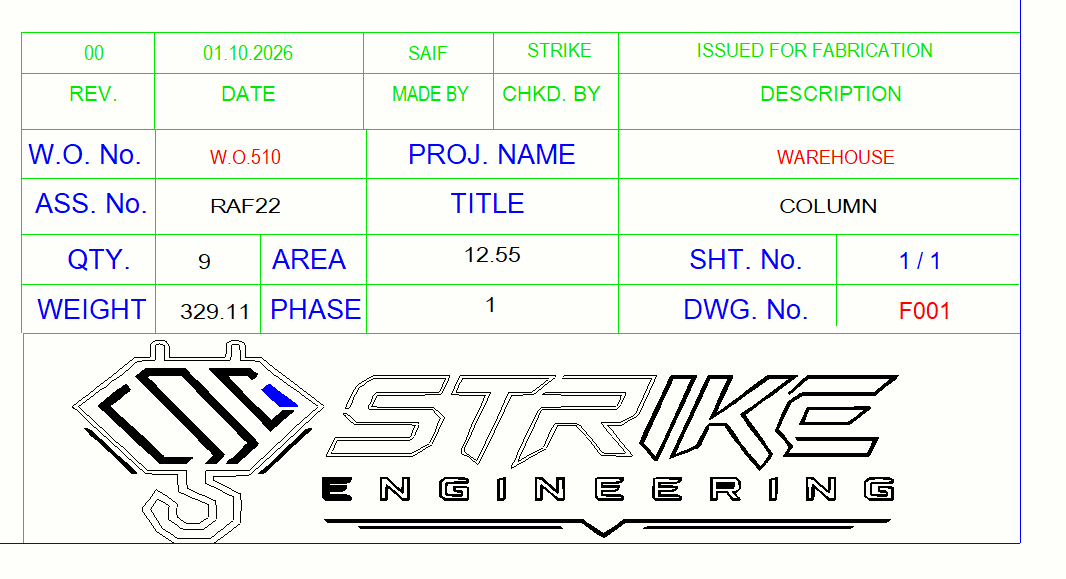
In this supplied template, the table’s DATE comes from the checked-by date. Check the mark, date, names and description on the drawing before issue.
05Drawing seriesKeep a run of drawings readable from one package to the next+
Use a clear prefix and sequential names for a small run, then check the first, next and last number before issue.
When you are sequencing many drawings, open Numbering Tool. It lets you define the prefix, start number, digits and destination, preview the sequence and apply it to the selected drawings.
06Final check before issueRead the sheet the way fabrication will read it+
Check the project number, project name, drawing name, title, quantity, revision, description, logo and sheet number on a real sample output.
The layout is a starting point. A specialist steel detailer remains responsible for the drawing content, project requirements and final issue decision.
Start with the sheet.
Make it yours.
Download the pack, test it in your Tekla environment and adapt the fields to your company standard.